

Most people check a deck’s slides before they send it. Far fewer check the file. That matters, because an editable presentation isn’t a printout. A .pptx or a shared Google Slides link is a working file, and it remembers the work that went into it.
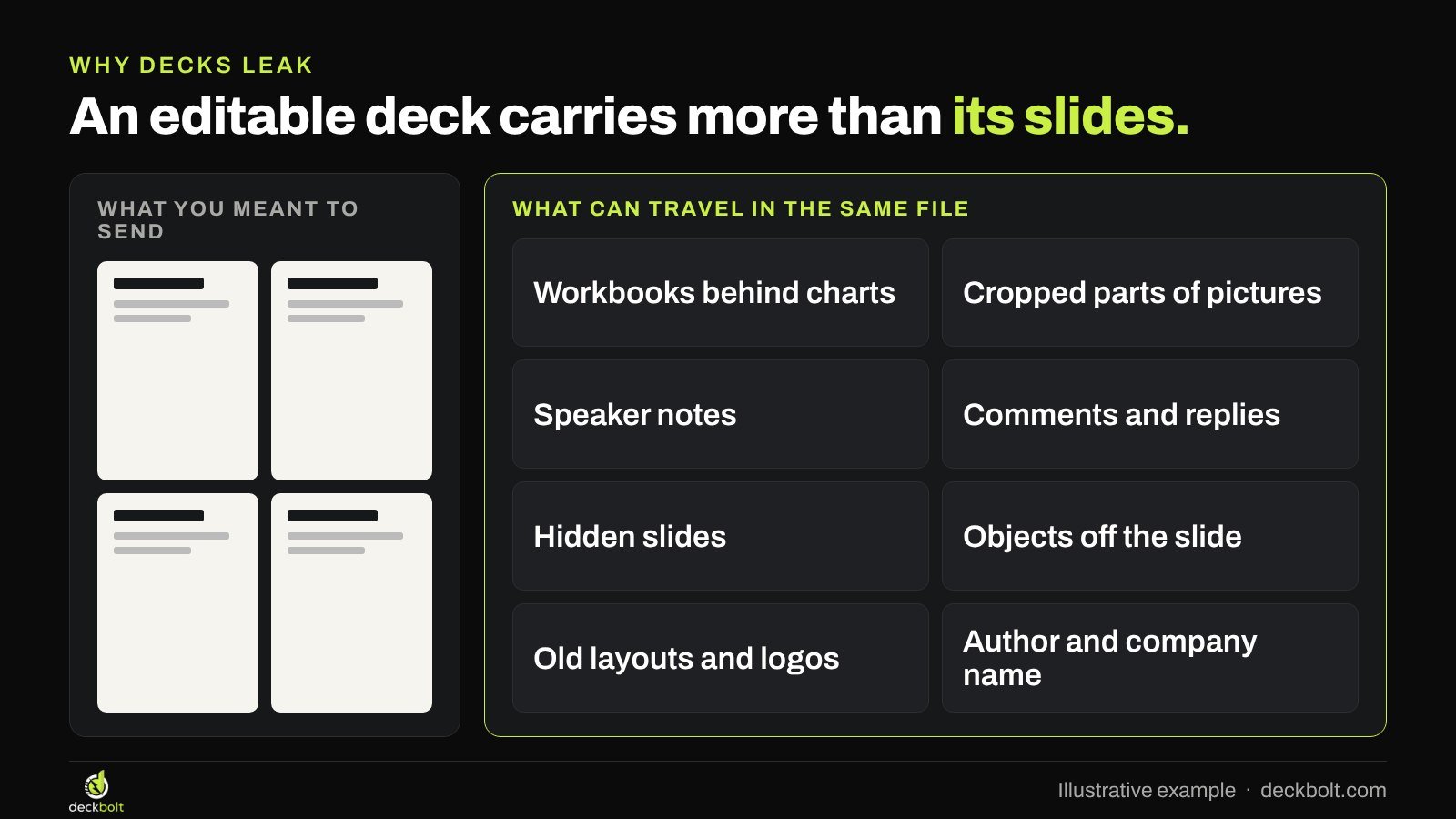
You can send a client one clean revenue chart and, without meaning to, send the workbook behind it: the customer list, the discount column, the tab someone named Salaries. Nobody has to hack anything to find it. They right-click the chart.
This guide is for founders, sales teams, consultants and anyone who sends editable decks outside the company. It walks through the five places private information tends to sit, how to check each one in PowerPoint and Google Slides, and how to decide what to send in the first place.
Why editable decks carry more than you think
Presentation tools are built for editing, so they keep things you might need later. Crop a picture and PowerPoint keeps the whole picture in case you change your mind. Hide a slide and it stays in the file in case you want it back. Resolve a comment and it’s kept for the record. Each of these is helpful while you’re working. The trouble starts when the same file goes to someone outside the team.
The risk grows because decks travel. A file sent to one contact can reach their finance lead, their procurement team or an adviser helping them decide. As we covered in our guide to decks that get forwarded, the file keeps working after you stop watching it.
The good news is that the list of usual suspects is short. Work through these five checks on a copy of the deck, not on your working file.
Check 1: charts that carry a whole workbook
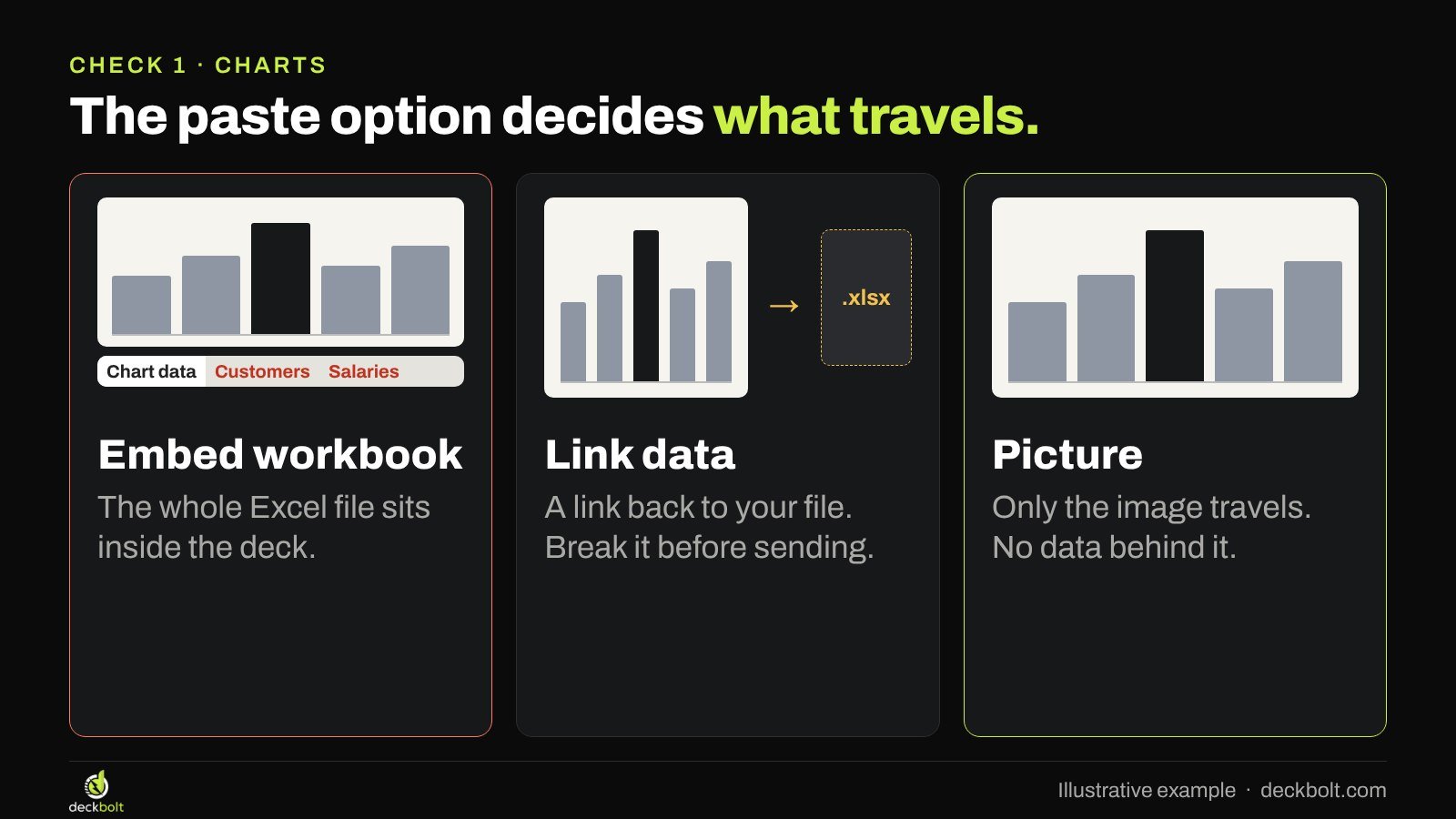
This one surprises people most. When you copy a chart from Excel and paste it into PowerPoint, the paste option decides what comes along. There are three broad choices:
- Embed workbook. The Excel file goes inside the deck. Anyone who opens the chart’s data can reach it, including tabs that have nothing to do with the chart.
- Link data. The chart keeps a link back to your file so it can update. The link points to where your file lives, and it can break on someone else’s computer.
- Picture. Only an image of the chart travels. There’s no data behind it.
To test a chart, right-click it and choose Edit Data. If that option isn’t there, it’s probably a picture, which is fine. If a spreadsheet opens, look along the bottom for extra tabs and scroll sideways for extra columns.
You have three fixes. If the reader doesn’t need to change the chart, paste it as a picture. If they do, rebuild it: use Insert → Chart and type in only the numbers the chart plots. That takes a few minutes and leaves nothing extra behind. If a chart is linked, go to File → Info, choose Edit Links to Files, and break the link before you send.
Google Slides works differently. Charts inserted from Google Sheets can stay linked to the sheet, and a reader can only reach the source if they have access to it. So check who can open that sheet before you share the deck.
Check 2: cropped images that can be uncropped
Cropping feels like cutting, but it’s closer to folding. Crop a screenshot to hide a list of client names and the full screenshot stays in the file. Anyone with the .pptx can select it, click Crop and drag the edges back.
Screenshots are the usual problem. A team crops a dashboard to show one number, and the rest of the dashboard, with names and prices on it, goes along for the ride.
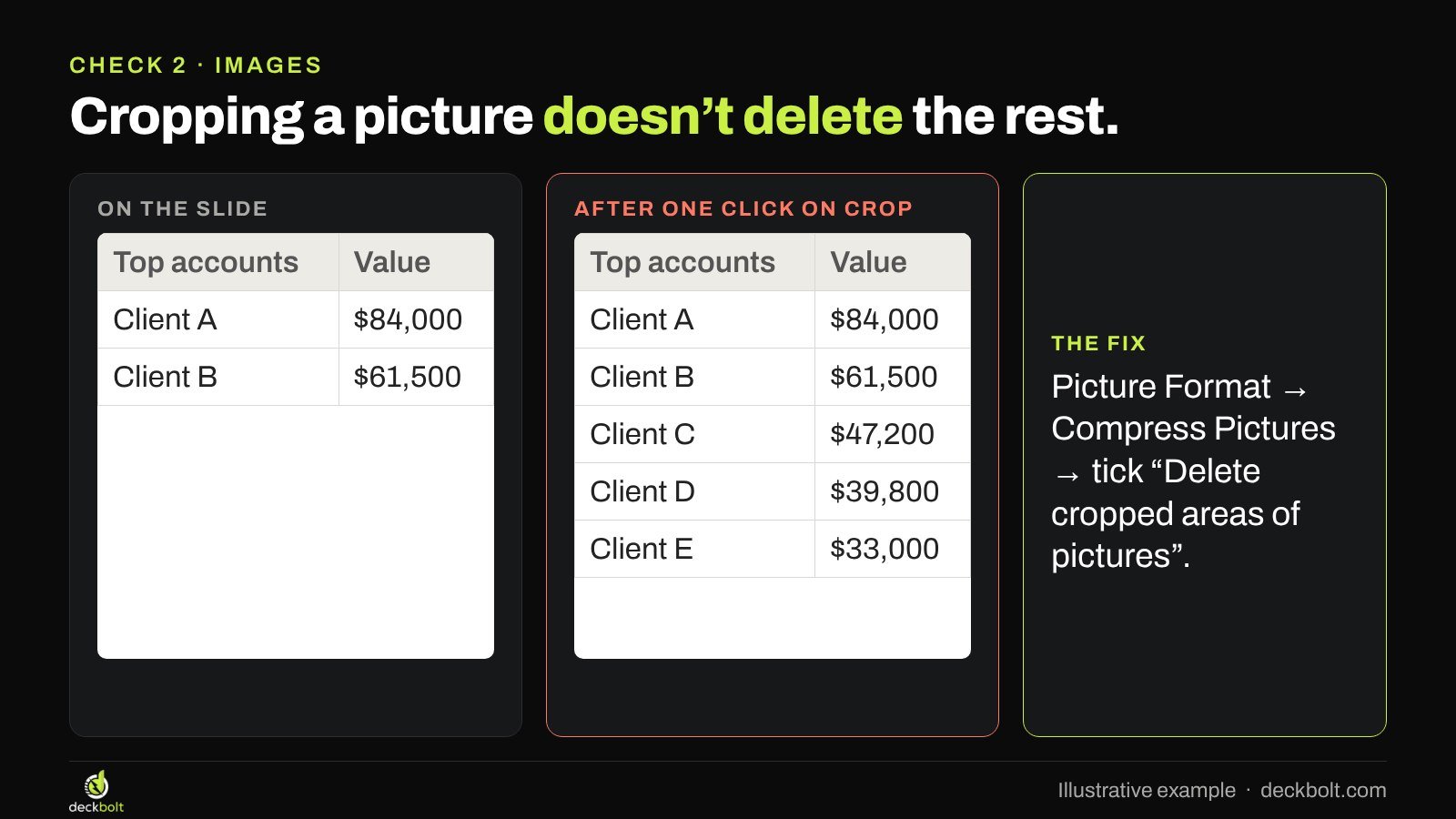
The fix takes a minute. Select a picture, open Picture Format → Compress Pictures and tick Delete cropped areas of pictures. Untick Apply only to this picture if you want it to cover the whole deck. Then click Crop again to confirm the hidden parts are gone.
For anything really sensitive, don’t rely on a crop at all. Take a new screenshot of only the area you need and insert that. It’s the safest habit in PowerPoint and in Google Slides, where a crop can also be adjusted later.
Check 3: speaker notes and comments
Notes are written for one person: you, on the day. That’s why honest thoughts end up there. “We can go 18% lower, but don’t offer it unless they push.” Comments are the same, with team debate on top. “Can we leave the churn number out of this one?”
Both stay in the file. Resolving a comment tidies your screen, but it doesn’t remove the comment. Read through the Comments pane in PowerPoint and delete what shouldn’t travel. In Google Slides, notes sit under each slide, so delete them in the copy you plan to share.
If your notes would help the reader, rewrite them instead of deleting them. A short, clean talk track is useful when someone has to present your deck to their own boss.
Check 4: the things you can’t see
Four kinds of content can stay in a file without ever appearing in the slide show:
- Hidden slides. Hiding a slide skips it in the show, but it stays one click away. Open View → Slide Sorter, look for the crossed-out slide numbers, and delete what shouldn’t go.
- Objects off the slide. That table you dragged aside for later is still there. Zoom out and look around the edges of each slide.
- Hidden objects. Home → Arrange → Selection Pane lists every object on a slide, including shapes that have been switched off.
- Old layouts. Decks built on earlier work can keep old logos and names on layouts nobody uses. Open View → Slide Master and delete them. A clean master template stops the problem at the start.
Check 5: Google Slides links and version history
Google Slides doesn’t send a file. It opens a door, and what people see depends on how that door is set. Someone with edit access can open File → Version history and step back through earlier drafts: old prices, another client’s name, the slide your team argued about.
Share a fresh copy instead:
- Go to File → Make a copy → Entire presentation.
- Leave Copy comments unticked.
- Delete the speaker notes in the copy.
- Share the copy as Viewer, with named people where you can.
- If it’s confidential, open the gear in the Share window and turn off download, print and copy for viewers and commenters.
A fresh copy starts its own version history, so earlier drafts stay behind. The same thinking applies to a PowerPoint file shared from OneDrive or SharePoint: share a copy, not the working file.
Let PowerPoint do a sweep
PowerPoint has a built-in tool for this called Document Inspector. On Windows, go to File → Info → Check for Issues → Inspect Document. It looks for items such as comments, presentation notes, off-slide content, invisible on-slide content and document properties like author and company names. Then it offers to remove what it finds.

Two cautions. Some removals can’t be undone, so run it on a copy and keep your working file safe. And it doesn’t replace the checks above: it can’t tell you whether a workbook tab is sensitive, or whether a layout carries the wrong client’s logo.
A worked example
Take an illustrative 18-slide proposal, due with a prospect on Friday. The regional revenue chart was pasted from the finance workbook, so it carries the customer list. A case study slide uses a dashboard screenshot cropped to one number. Slide 12 has pricing notes for the presenter. Slide 15 is hidden, left over from another bid.
Here’s the sweep. Save a copy named for the client. Replace the chart with a picture. Retake the screenshot so only the one number exists. Delete slide 15. Run Document Inspector and remove the notes, comments, off-slide content and personal details. Open the copy and click through it once as the reader would.
Then ask the question that decides the format: does the prospect need to edit this? They don’t. So the deck goes out as a PDF, and the clean .pptx waits in case they ask for it.
Decide what to send first
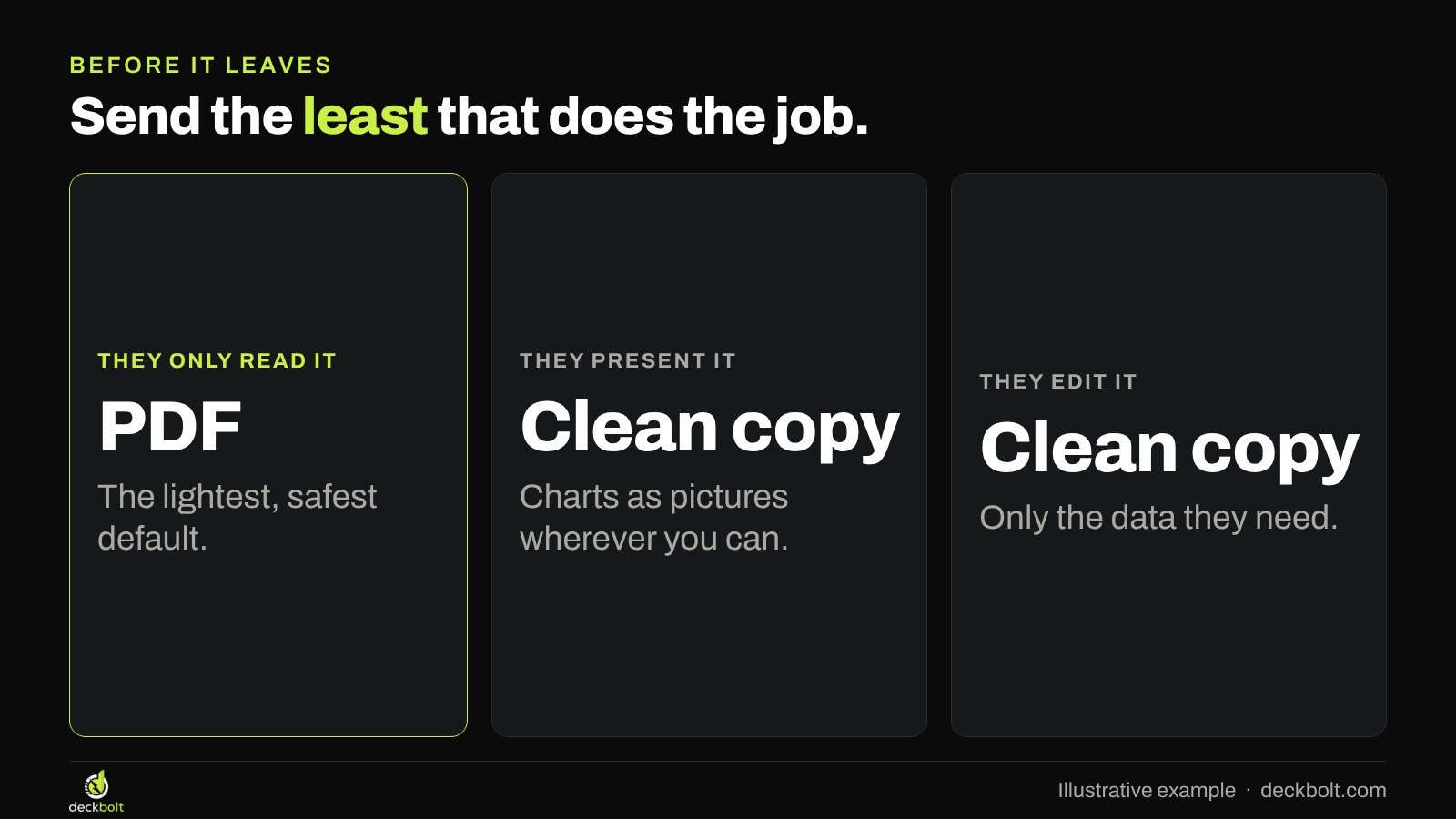
The safest file is the one with the least in it, so start with what the reader needs to do.
- To read it: send a PDF. Then run our six PDF checks before it goes.
- To present it: send a cleaned copy, with charts as pictures wherever you can.
- To edit it: send a cleaned copy with only the data they need, and agree who owns the final version.
Common mistakes
- Cleaning the master file. Removing notes from your only copy costs you the notes. Always work on a copy.
- Starting from the last client’s deck. It’s fast, but old layouts, comments and hidden slides come with it.
- Trusting “hidden”. Hidden means out of the way, not out of the file.
- Checking only what changed. The risky content is usually on the slides you stopped looking at weeks ago.
- Sending an editable file by habit. If nobody asked to edit it, a PDF usually does the job.
A five-question check
Before an editable deck leaves your company, make sure you can say yes to each of these. For the wider pre-send list, see our send-ready checklist.
- Have you opened the data behind every chart, and found no extra tabs?
- Are all cropped areas deleted?
- Are notes and comments out of this copy?
- Are hidden slides, off-slide objects and old layouts gone?
- Is the sharing set to the least the reader needs?
The examples, numbers and company details in this article are illustrative. Menu names can vary between versions of PowerPoint and Google Slides. If your company handles regulated or confidential data, follow your own security rules first.
Getting a deck ready for a client, an investor or a board? DeckBolt designs pitch, sales and executive decks in native PowerPoint and Google Slides, built to be sent. Request a free deck review.