
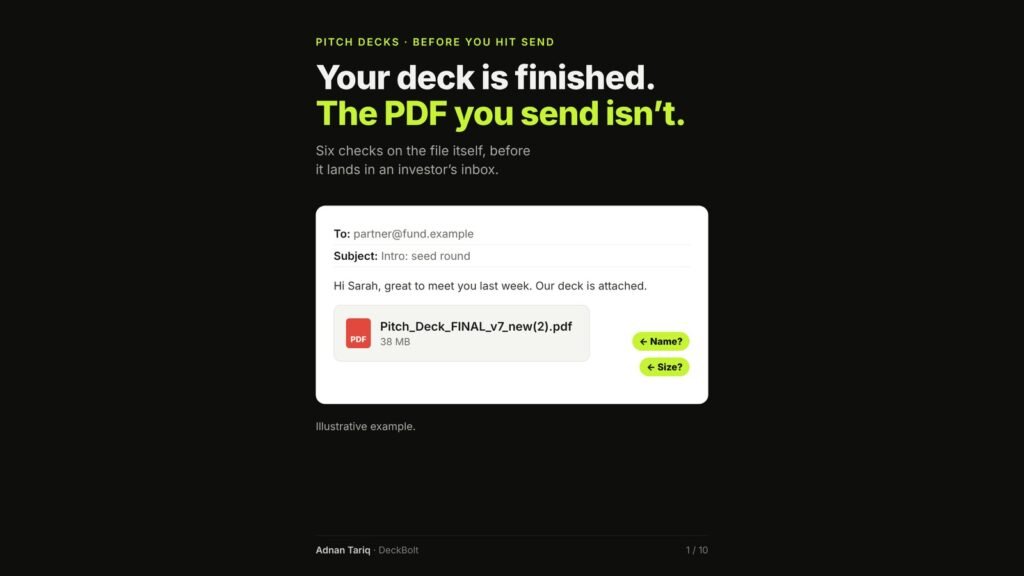
Before an investor reads slide 2, they have already seen the file: its name in their inbox, its size on the attachment, page 1 as a preview, the title at the top of the viewer. None of that is designed in PowerPoint. Here are six checks to run on the PDF itself before it goes out.
The file gets seen before slide 2 does
There are four places people meet your deck that are not slides at all:
- The inbox. The file name and size on the attachment are the first hint of how careful you are.
- The preview. Many email apps show page 1 as a thumbnail, so your cover is already doing work.
- The viewer. The title at the top of the tab or window is often taken from the file’s properties.
- Their downloads. The name is what they will search for two weeks later, before the partner meeting.
1. Name it for them, not for your version history
“Pitch_Deck_FINAL_v7.pdf”, “deck new (2).pdf” and “Deck – for Sarah – edits AT.pdf” all read as unfinished or internal. Use your company name first, then what the file is, then the month: “Tidewell – Seed Deck – Oct 2026.pdf”. Your company name is what they will type into search later. Leave out “final”, version numbers and initials.
2. Keep it light
Big photos and screenshots are usually what makes a deck heavy, and the slides look the same either way. A heavy file gets opened later, or not at all. Gmail, for one, caps attachments at 25 MB and turns bigger files into a Drive link, and a large file is slow to open on a phone.
Fix in PowerPoint: Picture Format → Compress Pictures, with cropped areas deleted. Then check the size of the exported PDF, not the .pptx.
3. Set the document title
The file name is not the only name a PDF has. Many PDF viewers show the title stored in the file’s properties, and it can be left over from a template or an old deck, so the tab reads “PowerPoint Presentation” instead of your company name.
- PowerPoint for Windows: File → Info → Properties → Title. Check Author and Company there too.
- Google Slides: rename the presentation before you download it.
4. Click every link in the PDF, not in PowerPoint
A link that works in your editor can still fail in the exported file. Click each one in the PDF: your email, your demo video, your booking link, your website.
- Export, don’t print. Use Export or Download as PDF. Printing to PDF can drop links.
- Check the sharing. A video or document only you can open sends them to a “Request access” page.
5. Send only what you meant to send
The export can carry more than the slides you were looking at:
- Hidden slides, which are an option in PowerPoint’s PDF export.
- Comments and notes pages, also export options. Keep them off.
- Another investor’s name, left over from the version you sent last week.
- Old numbers on an appendix slide nobody updated.
Quick test: search the PDF for the last investor’s name, last quarter’s numbers, and words like “draft” or “TBD”.
6. Open it the way they will
Send it to yourself, then open it on your phone and in a browser. Does page 1 read as a thumbnail? Can you read every headline on the phone? Search for a word: if it is not found, your text has turned into images. Also check that the pages are in the right order, none are blank, no slide is cut off, and the fonts look like the ones you chose. (More on that in our post on phone-readable decks.)
The pre-send check
- Name: company, what it is, month. No “final”, no versions.
- Size: pictures compressed, small enough to attach and open fast.
- Title: the file’s own title matches the file name.
- Links: every link clicked in the PDF, and shared publicly where needed.
- Contents: no hidden slides, comments, old names or old numbers.
- Reader view: opened on a phone and in a browser, page 1 first.
The slides earn the meeting. The file decides how people meet the slides. (For what a forwarded deck loses besides the file, see our post on send-ahead decks.)
The company name, file names and sizes above are illustrative.
Sending a deck this month? Send it over for a free review. We will look at it the way an investor meets it: the file, page 1, and the story behind it. Request a free deck review.