
You type a prompt, wait a minute, and get twelve tidy slides. There is an introduction, some key benefits, a roadmap and a conclusion. It looks like a presentation. It may even look better than your last one.
Then you try to present it, and something is missing. The slides cover the topic, but they don’t argue anything. Nobody in the room would know what you want them to do.
An AI draft is a useful place to start, and this article isn’t an argument against using one. It is a guide for founders, marketers and business teams who already draft slides with AI and want to turn that draft into a deck worth presenting. It covers what AI is good at, what is still your job, and five editing passes to run before anyone else sees the file.
Why an AI draft looks finished before it is
A blank page looks unfinished, which is its one advantage: you know there is work to do. An AI draft hides that work. The formatting is clean, the slides are full and every section has a heading, so it is easy to believe the job is nearly done.
But look at the titles. Introduction, Overview, Key Benefits, Challenges, Solutions, Next Steps. Those are labels for a topic, and they would fit almost any company. The layout usually repeats too: a heading, three bullets and a picture, slide after slide.
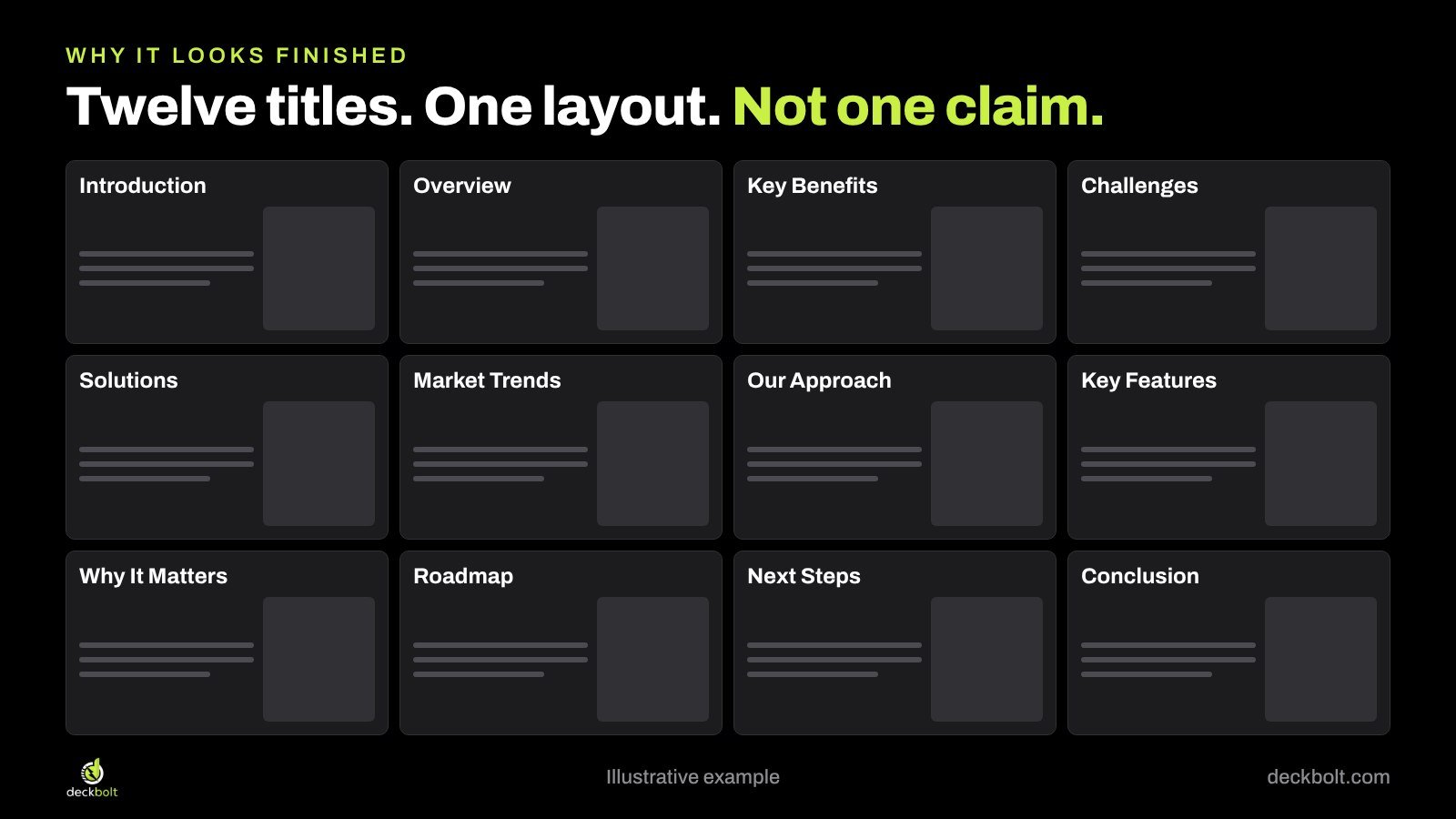
That is what you would expect from a tool that has been told a topic and nothing else. It can arrange what is generally said about a subject. It doesn’t know your customer, your numbers or the decision you need from the room unless you tell it.
What AI helps with, and what is still yours
The draft got faster. The thinking didn’t. It helps to be clear about the split:
AI is useful for:
- A rough outline to react to
- First-pass wording
- Different ways of structuring the same material
- Shorter versions of text you already wrote
Still yours:
- The point of the deck
- The real proof
- What to leave out
- Whether any of it is true
Treat the draft as a junior colleague’s first attempt: quick, willing and in need of direction. The five passes below take that direction in the right order, because there is no point polishing a slide that the argument won’t need. If you want more on why structure comes before styling, read Your Deck Doesn’t Need More Design. It Needs an Argument.
Our example throughout is illustrative: a software company whose support team wants approval for a night shift.
Pass 1: Write the point before the prompt
If you give a tool no point, it will write a safe, generic one for you. So start with one sentence, before you open the tool:
After this deck, [who] should [do what], because [why].
In our example: “After this deck, the leadership team should approve a night support shift, because night tickets wait 9 hours.”
That sentence does more work than any styling instruction. It names the audience, the decision and the reason. Put it in your prompt, along with your real numbers and the order you want the argument to run in. Then ask for a short outline first, not finished slides. An outline is quick to correct. Twelve finished slides feel expensive to throw away, even when they cost you nothing.
Already have a draft? Write the sentence anyway, and judge every slide against it. If a slide doesn’t help that sentence, it probably shouldn’t be there.
Pass 2: Turn topic titles into claims
A topic title tells people what a slide is about. A claim tells them what it says. Rewrite each title as a full sentence that could stand on its own.
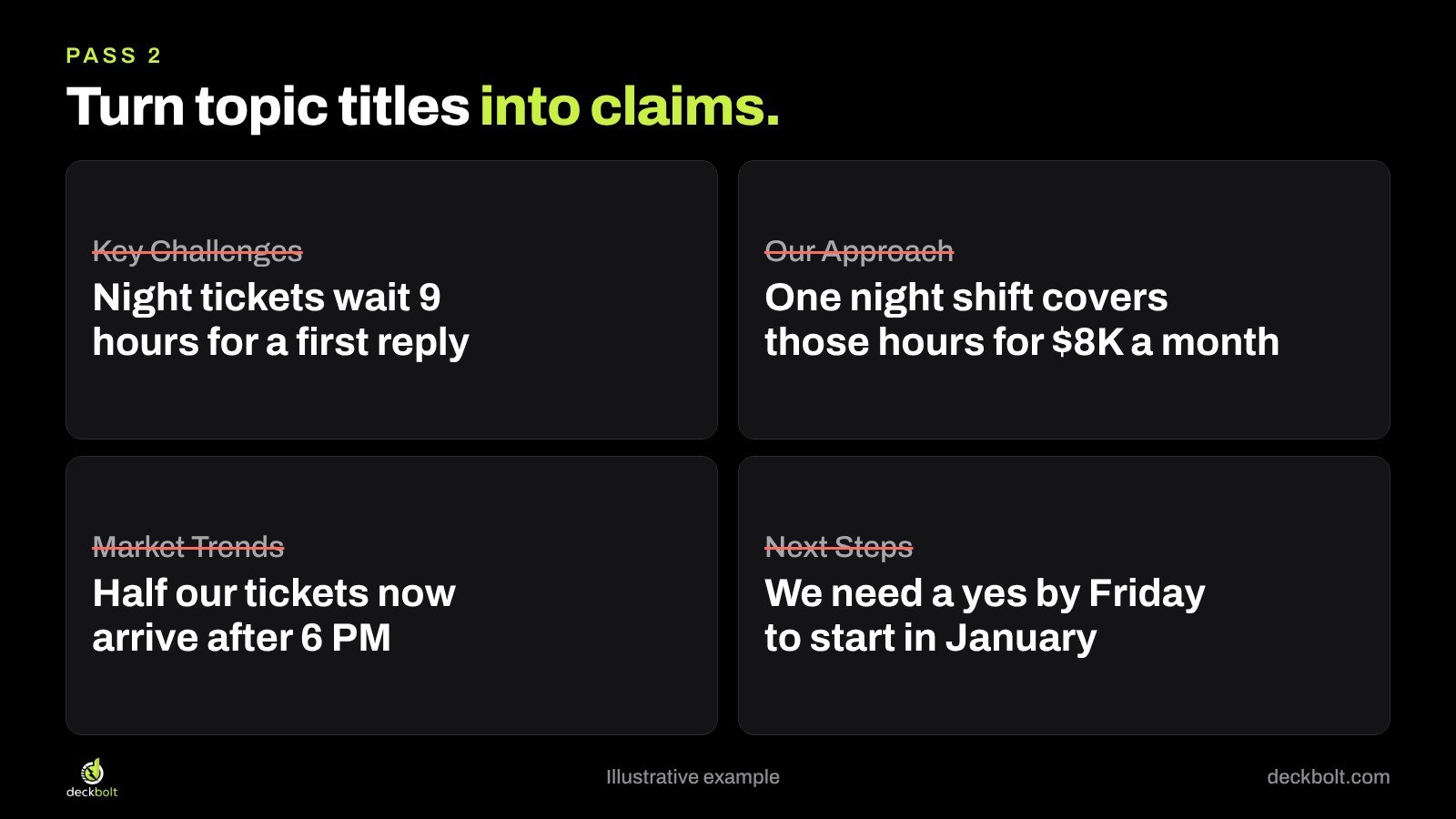
- “Key Challenges” becomes “Night tickets wait 9 hours for a first reply.”
- “Market Trends” becomes “Half our tickets now arrive after 6 PM.”
- “Our Approach” becomes “One night shift covers those hours for $8K a month.”
- “Next Steps” becomes “We need a yes by Friday to start in January.”
Now read the titles alone, top to bottom, without the slides. They should make the argument by themselves. If you find a gap, a slide is missing. If you find a title that doesn’t move things forward, a slide can go. This usually removes several slides from an AI draft, which often pads a short argument out to a round number.
In PowerPoint, Outline View is a quick way to read every title in one place. In Google Slides, the same reading can be done from the filmstrip or by copying the titles into a document.
Pass 3: Check every number
This pass matters most. AI tools can state a made-up figure as confidently as a real one, and the sentence around it will sound just as sure. A reader can’t tell the difference. You can, but only if you check.
Be especially careful with any line that begins “Studies show” or “Research suggests,” and with neat percentages that have no source attached. The same goes for quotes, company names, dates and market sizes. For each one, ask three questions: which source, when was it published, and can you open it yourself?

Then take one of three actions:
- Found it. Keep it, and put the source and date on the slide.
- Can’t find it. Cut it. Don’t keep it because it sounds right.
- Have your own. Replace it with your own data, which is usually more persuasive anyway because the audience knows it is about them.
One more caution: check your company’s rules before pasting confidential numbers into any AI tool. Customer data, financials and anything under NDA may have restrictions on where they can go.
Pass 4: Swap generic for specific
Generic language is the clearest sign that nobody has edited a draft. It isn’t wrong. It just isn’t about anyone.
Here is a simple test: could a competitor paste this line into their own deck without changing a word? If so, rewrite it.
- “We deliver seamless support experiences” becomes “Night tickets wait 9 hours. Day tickets wait 40 minutes.”
- “Leveraging cutting-edge solutions” becomes “Two agents, 6 PM to 2 AM.”
- “Driving customer satisfaction” becomes “Night tickets score 3.1 out of 5. Day tickets score 4.6.”
The specific versions are shorter, and they are harder to argue with. Watch for words like seamless, robust, leverage, unlock and transformative. When you see one, ask what actually happens, to whom, and how you know. If you need a method for cutting a wordy slide down, our text condensation guide walks through one.
Pass 5: Let each point choose its form, then rebuild the file
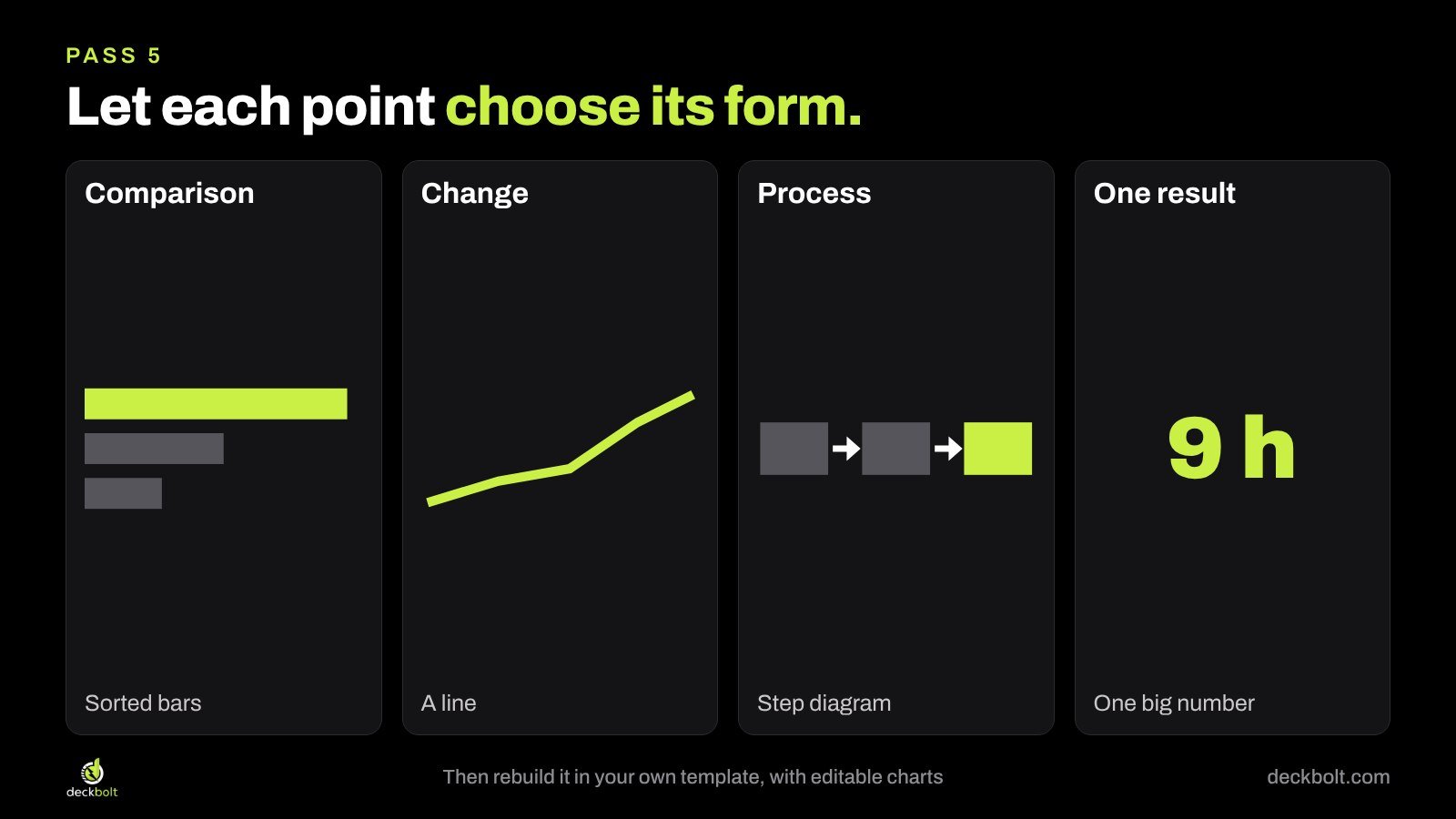
By now, your slides should say something different from one another. They shouldn’t all look the same. The form of a slide should come from what it is saying:
- A comparison becomes sorted bars.
- A change over time becomes a line.
- A sequence becomes a process diagram.
- One important result becomes one big number.
If you are unsure, our guides to turning bullets into diagrams and choosing a chart by the question will help.
Then check the file itself, because what looks right on screen may not be built well. Depending on the tool, a draft can arrive with loose text boxes, charts that are really pictures, or fonts and colors that sit outside your brand. Before you share it:
- Move the content into your own template, not the tool’s. In PowerPoint, that means real layouts from the Slide Master. In Google Slides, use Slide → Edit theme.
- Make sure each title sits in a real title placeholder, so navigation and accessibility work.
- Make every chart editable, with the data behind it.
- Use theme fonts and colors, so the next person can change them once.
A deck your team can’t edit will fall apart at the first change. Our guide to building a master template covers this in more depth.
Before and after: one slide
Here is one slide from our example at both ends of the process.

The draft says “Key Challenges,” with three bullets and a stock image. Nothing on it is false, and nothing on it would change anyone’s mind.
The edited slide says “Night tickets wait 9 hours. Day tickets wait 40 minutes.” Two bars show the gap at a glance, and a single line at the bottom says what is needed: approval for one night shift at $8K a month. It took the same information the team already had. The difference is that someone decided what the slide was for.
Common mistakes
- Polishing first. Changing fonts on slide 7 before you know slide 7 belongs in the deck.
- Keeping the slide count. Twelve slides isn’t a target. If the argument takes six, use six.
- Trusting the tone. Confident wording tells you nothing about whether a claim is true.
- Asking AI to fix the whole deck at once. Small, specific requests on one slide tend to work better than “make this better.”
- Skipping the read-through. Present it out loud once. You will hear what doesn’t sound like you.
A short checklist
Before anyone else sees the deck, check five things:
- Can you say the point in one sentence?
- Do the titles alone make the argument?
- Can you source every number?
- Could a competitor use any line as it is?
- Is it editable, in your own template?
The company, numbers and examples in this article are illustrative. The “73%” line in the image above is a sample of an unverified claim, not a real statistic.
An AI draft is a fine place to start, and a good designer can take it from there. DeckBolt builds pitch, sales and executive presentations in PowerPoint and Google Slides, and we are happy to look at a draft however it was made. Request a free deck review and we’ll tell you the three slides we’d fix first.