
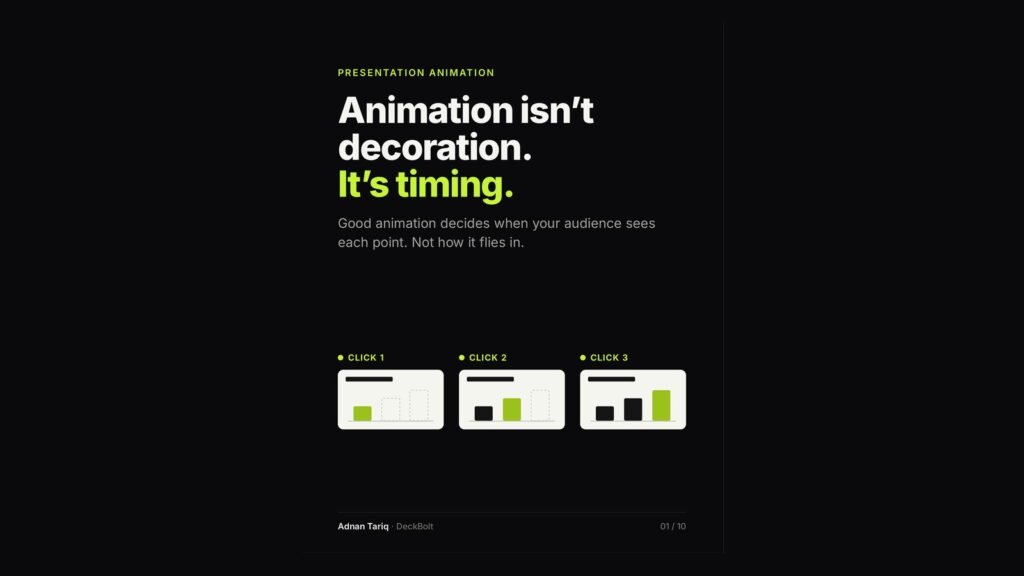
Animation has a bad reputation in business presentations, mostly because of spinning logos and bouncing bullets. Used well, it is not decoration at all. Good animation decides when your audience sees each point, not how it flies in.
The problem: show everything at once, and people read ahead
Put a slide titled “Why customers leave” on screen with four reasons visible at once, and your audience reads all four while you are still talking about the first. They finish the slide before you do, and now you are repeating what they have already read.
The rule: every animation needs a job
There are three jobs worth doing. If an animation does none of them, cut it.
Job 1: Reveal, in the order you speak
One point per click. Earlier points stay visible, but quieter, so the audience is always looking at the point you are making.
How: add one Fade per point, set to “On click” (this works in PowerPoint and Google Slides). To dim earlier points in PowerPoint, use Effect Options → After animation and pick a dim colour.
Job 2: Change. Show it, do not describe it
When something moves from A to B, let the audience watch it move. For example, an onboarding-time bar shrinking from 14 days to 5 days.
PowerPoint: duplicate the slide, change it, and apply the Morph transition. Google Slides: duplicate the slide, change it, and apply a Fade transition.
Job 3: Focus. Dim everything except the point you are on
On a chart titled “Online drove most of this year’s growth”, grey out the North, South, East and West bars and leave Online in your accent colour.
How: duplicate the slide and grey out everything but the point you are on. It works in PowerPoint and Google Slides.
What to cut
Cut anything people notice more than your content:
- Bounces, spins and fly-ins
- Animating every object
- Slow transitions between slides
- Text appearing letter by letter
If people remember the effect, it cost you the point.
Keep it consistent: treat animation like a font
Pick one animation style for the whole deck:
- Effect: Fade
- Trigger: On click
- Speed: Fast
- Order: the order you speak
- Slide transitions: none, or Fade
One effect, one speed, one trigger, on every slide.
One slide, two animation panes
Before: nine effects in nine styles: Fly In on the title, Bounce on an image, Spin on the logo, then Zoom, Wipe, Swivel, Grow/Shrink, Float In and Pulse. None of them help the story.
After: four effects in one style: Fade on point 1, point 2, point 3 and the chart highlight. Each one has a job.
One caution if you send your deck as a PDF: builds do not play, so check every slide’s final state too. See Your Pitch Deck Gets Forwarded. You Don’t.
Before your next presentation, make every click earn its place. Get a free review of your deck: story, design, and what should (and should not) move.